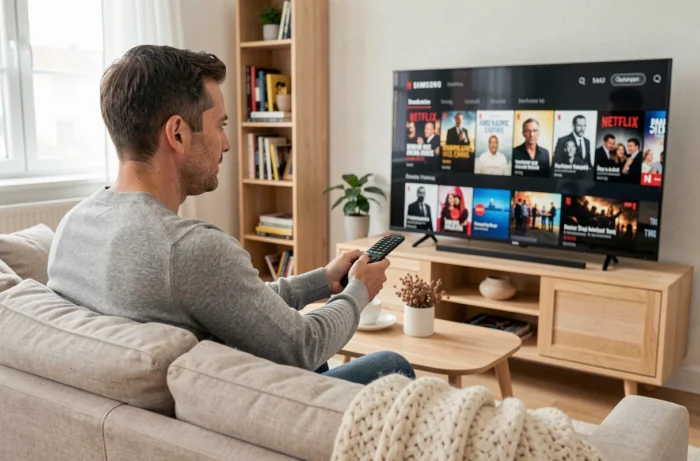
Samsung TVs sold over the past decade come with Netflix built-in, but the presence of the “Smart TV” label does not guarantee the longevity of the application or access to the latest video formats. The television’s operating system, the exact model, and the Netflix subscription plan each condition part of the experience.
Tizen or Orsay System: Identify the Software Base Before Any Manipulation
The first check to perform does not concern Netflix but the television’s operating system. Samsung switched from the Orsay platform to Tizen in the mid-2010s. Models that remain on Orsay gradually lose access to the Netflix application, with no user-side fix possible.
To determine the system, we recommend opening the Settings menu, then Support, then Device Information. The model number and firmware version are listed there. A model code starting with “UE” or “UN” followed by a year prior to 2016 generally indicates a TV running on Orsay.
If the Netflix icon does not appear in the app hub and a search in the Samsung Apps Store yields nothing, the TV is likely excluded. We will return to this in the section dedicated to HDMI fallback solutions.
For those whose TV runs on Tizen, the procedure remains straightforward: simply navigate to the application bar at the bottom of the home screen, locate Netflix (often pre-installed), launch the application, and log in with your credentials. When looking to use Netflix on a Samsung TV, this sequence covers the majority of cases.
HDR10+ on Netflix and Samsung TVs: Real Compatibility Beyond the Logo
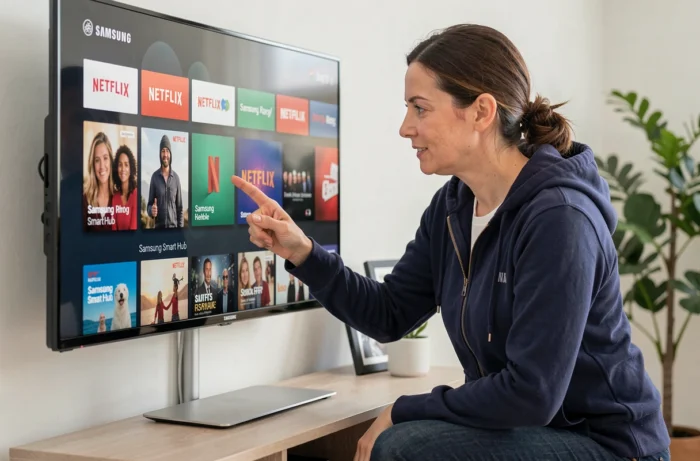
A Samsung TV displaying the HDR10+ logo on its specifications does not automatically stream Netflix in this format. The HDR10+ compatibility chain requires several simultaneous links: a model certified by Netflix, an up-to-date application version, content encoded in HDR10+, and a Premium or equivalent plan allowing Ultra HD streaming.
Samsung has announced support for HDR10+ on a selection of recent Neo QLED, OLED, and Lifestyle range TVs, as well as on certain monitors. In practice, an entry-level QLED or a model from a few years ago will not meet all the conditions.
Check the Actual Playback Format
In the Netflix application, access a title known to be available in HDR10+ (some Netflix original productions are). During playback, open the video stream information. If the mention “HDR10+” does not appear, one of the links in the chain is missing.
- The plan must allow Ultra HD; otherwise, Netflix limits the resolution and disables extended HDR, regardless of the TV’s capability.
- The bandwidth must reach a sufficient rate for the 4K HDR stream. An unstable Wi-Fi connection will automatically revert to an SDR stream.
- The HDMI port used (in case of an external device) must support HDMI 2.0a at a minimum, with the UHD Color mode enabled in the TV settings.
Samsung TV Incompatible with Netflix: Arbitration Between HDMI Stick and Replacement
A TV excluded from Netflix does not need to be replaced as long as it has at least one functional HDMI port. Streaming sticks and boxes provide full access to a current version of the application.
Chromecast, Fire TV Stick, or Roku: Selection Criteria
The choice depends on the existing ecosystem. A household equipped with Android or Google devices will prefer a Chromecast or a Google TV Streamer device. An Amazon environment (Alexa voice assistant, Prime subscription) will work better with the Fire TV Stick. Roku remains a neutral option, compatible with most services without ecosystem favoritism.
- The Chromecast with Google TV has its own system and no longer relies on the smartphone to navigate menus, unlike older Cast-only models.
- The Fire TV Stick supports Netflix in 4K HDR on its recent version, provided you select the “4K Max” model or equivalent.
- Roku offers a clean interface and regular updates, but its commercial availability in France remains more limited than the other two.
In any case, connecting the device to a UHD-compatible HDMI port on the Samsung TV and enabling the extended input mode (or UHD Color) in the picture settings ensures that the 4K stream is not throttled by the TV itself.
Resolving Common Netflix Issues on a Samsung TV
When the Netflix application crashes, displays a black screen, or refuses to load a catalog, the cause is rarely an account issue. We observe three recurring patterns on Samsung TVs running Tizen.
Saturated Application Cache
Go to Settings, then Applications, select Netflix, and clear the cache. On some models, the “Reset Application” option goes further by deleting local data, which forces a new authentication but resolves most blocks.
Outdated Firmware
A pending system update can block the launch of Netflix without an explicit error message. Check in Settings, Support, Software Update. If a version is available, apply it before any other troubleshooting attempts.
DNS Conflict
Netflix may fail to resolve its servers if the DNS configured on the TV is unstable. Manually switching the DNS to a reliable public server in the TV’s network settings often fixes “connection impossible” errors while Wi-Fi works normally for other applications.
When none of these interventions resolve the issue and the TV is from before the migration to Tizen, switching to an external HDMI device remains the most sustainable solution to maintain Netflix access without changing the TV.